Adding a mail account
Learn how to easily add and set up a mail account
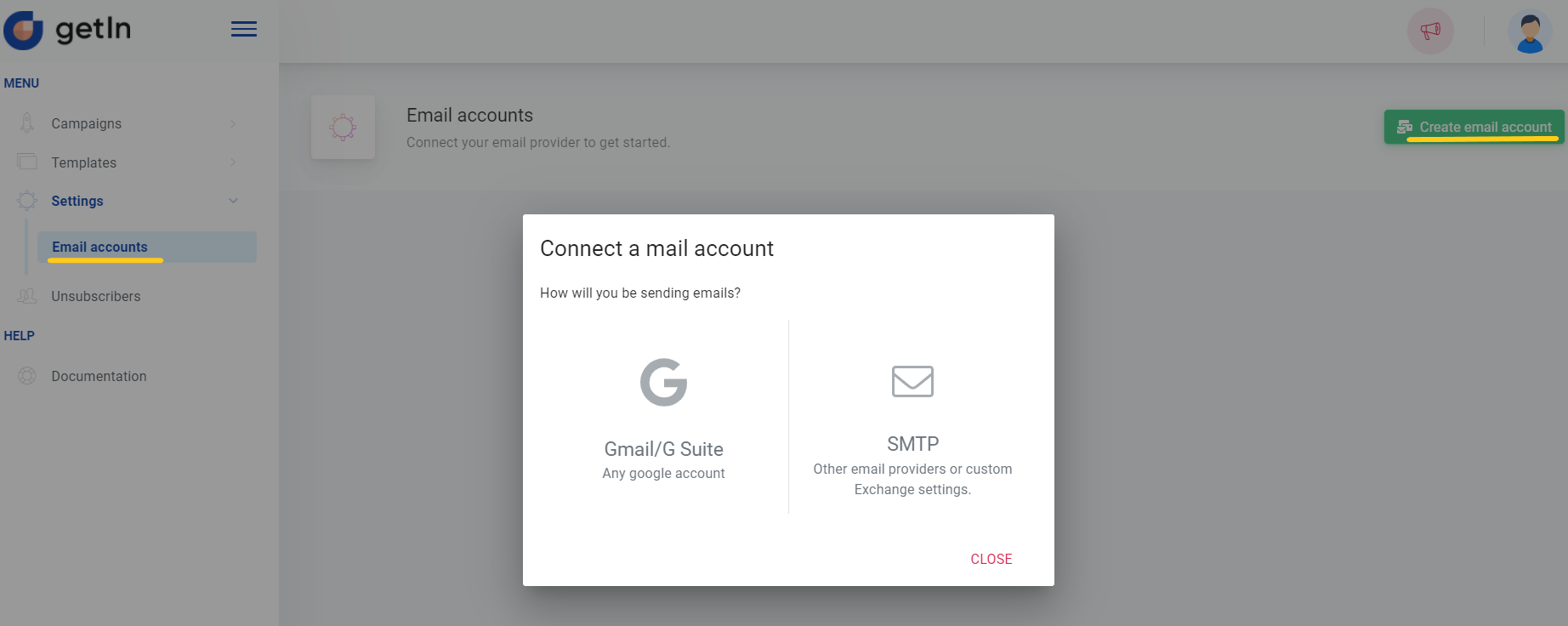
To add a mail account you need to navigate to the Email accounts and click on +Create email account. You will get two options: add a Gmail/G suite mail account or add any other SMTP account.
Gmail/G suite account
- Click on the Gmail/G suite icon to add a Gmail/G suite mail account;
- A new window will open where you will need to configure Gmail SMTP;
- We strongly recommend to use gmail app password. Don't know how to create app password? Check it hereopen in new window
- More how SMTP can be configured check 👇
Other SMTP account
- Click on SMTP icon;
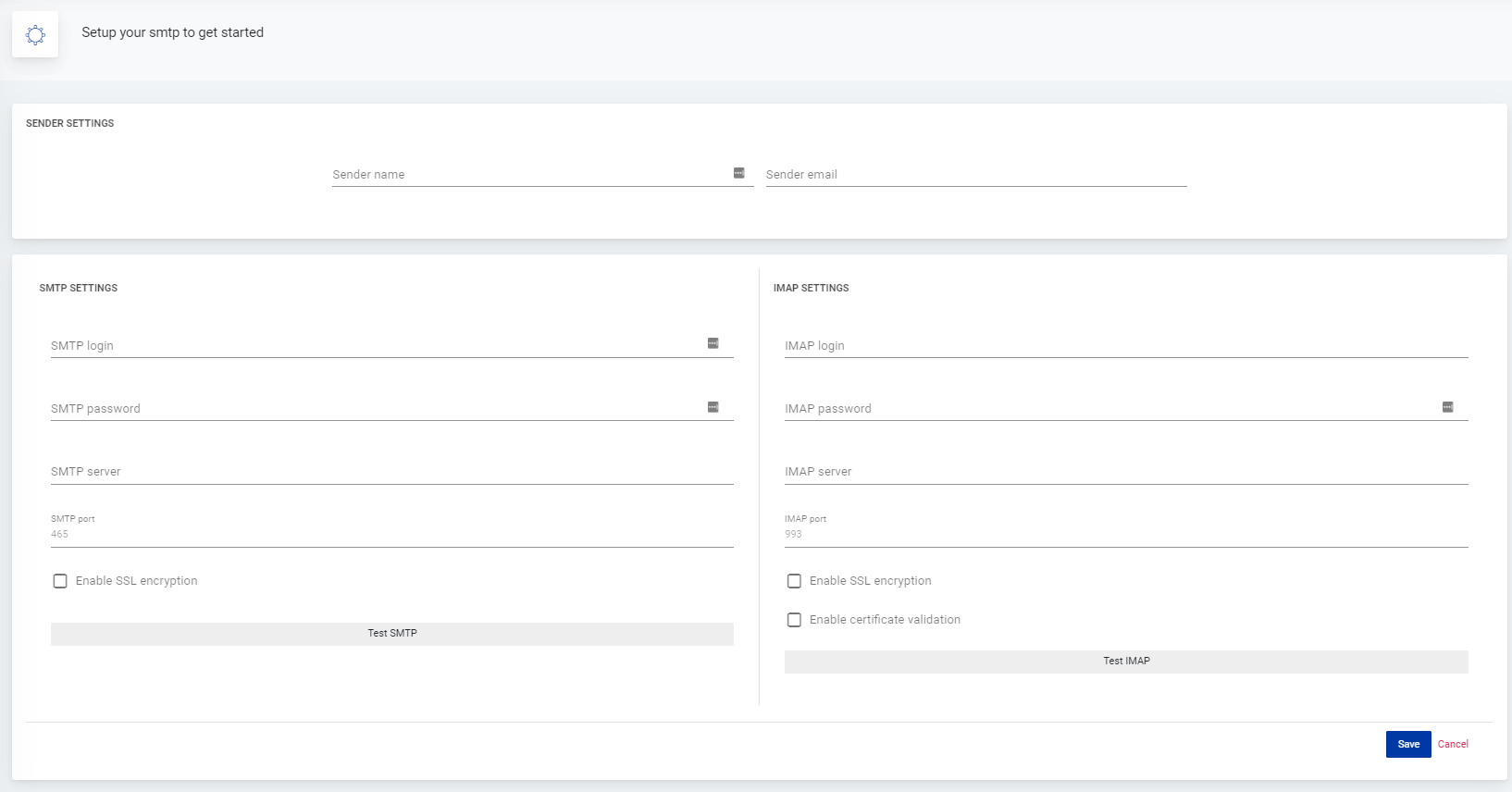
- In the provided form you’ll need to fill all fields: a sender’s name and email, both SMTP and IMAP logins, passwords, servers and ports;
- Click on Test SMTP and Test IMAP to check if provided credentials are correct - a notification will inform you if everything is alright;
- Enabling SSL encryption and certificate validation is optional, yet we recommend enabling them to increase the security of transactions;
- Finally, click Save to connect the account.
Note: mail accounts’ number is not limited, add and use as many mail accounts as you need.
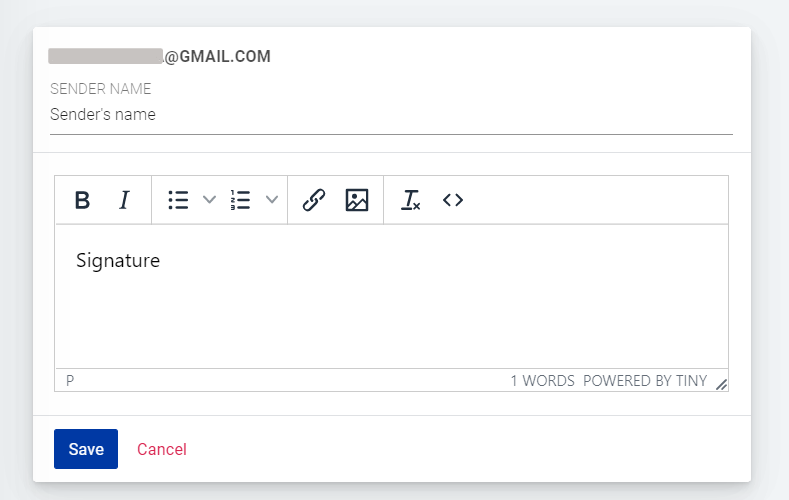
Once the mail account is added click Edit to set your sender’s name and a signature. A recognisable sender’s name and informative signature will complete your email in a proper tone.